Case entry
Controls in Gangster Mafia War – The Feel of the Streets
Controls are fundamental to the feel of Gangster Mafia War: City Crime. They decide whether you’re gliding through intersections and firefights or wrestling with the screen. Here’s how the mobile scheme is built, where it works best, and how to tune it.
Gangster Mafia War: City Crime runs a classic mobile action setup: a persistent left virtual thumbstick, a cluster of action buttons on the right, and contextual shortcuts when you’re near something important. It’s a familiar layout, but the way it handles speed, aim assist, and driving transitions is what ultimately defines how the game feels in your hands.
The default configuration is designed so that players coming from other open-world shooters can jump in with minimal friction. The thumbstick handles walking, running, and steering, while the right-hand buttons take care of firing, interacting, jumping, and dodging when appropriate. Weapon and vehicle interactions are layered on top with wheels and pop-up prompts rather than extra permanent buttons.
For newcomers, the controls are usable out of the box, though not every device will feel equally smooth. With a little time spent in the options menu—changing sensitivity, button size, and layout—most players can get to a point where the game’s city blocks feel readable and responsive rather than slippery.

HUD breakdown
Touchscreen Layout: Thumbstick, Action Cluster, and Weapon Wheel
The interface overlays urban exploration with a three-part structure: movement on the left, actions on the right, and temporary wheels for weapons and context-sensitive options.
Core layout
The left side of the screen is dominated by a virtual thumbstick. It doesn’t lock you into a rigid gate—your thumb can slide within a generous zone, which makes it forgiving during quick reactions or one-handed play. The further you drag, the faster the character moves, giving a simple but readable gradient between cautious walking and full-speed running.
On the right side, you’ll find the key action buttons. Typical assignments include:
- Shoot / attack for combat encounters
- Interact to talk, pick up items, or trigger mission markers
- Jump / climb when the environment allows it
The game avoids flooding the right side with permanent icons. Instead, weapon selection appears as a pop-up wheel, and specific contextual actions show only when they’re relevant, reducing accidental taps.
On-foot and driving modes share the same general footprint, which helps muscle memory. What changes is the iconography and behavior: running becomes steering, jump may be replaced by handbrake, and the primary fire button can lean towards either shooting or honking depending on the context.
HUD at a glance
Movement
Left thumbstick, analog-style speed
Actions
Right-side context cluster
Weapons
Pop-up wheel, quick swap
Modes
On-foot vs. driving overlays
If you are familiar with other mobile open-world shooters, this setup will feel immediately readable, with minor adjustments needed for vehicle-heavy sequences.
For a broader view on how this layout feeds into the game’s pacing and mission design, see the Gameplay and Missions pages.
Firefights and threat responses
Combat and Aiming Mechanics: Snap Assist and Dodge Timing
Shooting and melee are built around snap-to-aim aids, tap-to-fire behavior, and situational dodge or cover buttons that only appear when threats are close.
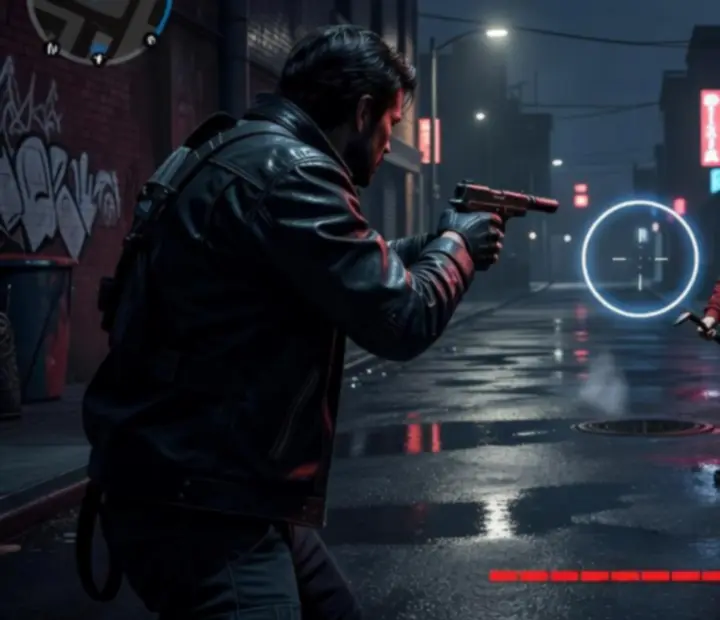
The game leans on aim assist to make firefights manageable on a touchscreen. When you tap the fire button while roughly facing an enemy, the reticle tends to snap toward the nearest target, reducing the need for pinpoint thumb precision. This keeps the focus on positioning—ducking behind cars, flanking alleys—rather than wrestling with micro-adjustments.
Tap-to-fire behavior is straightforward: one tap, one shot or short burst depending on the weapon. Holding the button may extend bursts on automatic weapons, but the overall philosophy is to keep input simple and predictable.
In close-range situations, dedicated dodge or cover buttons can appear. These are contextual—during a quiet walk they may not be visible at all—but when shots start flying, an extra icon tends to surface to let you roll, sidestep, or slide into basic cover. This reactive design keeps the everyday HUD lighter but asks you to stay visually alert when the screen starts to fill up.
Weapon switching lives on a quick-access wheel invoked near the right thumb. A short press can flip between your last two choices, while a longer hold opens the full radial. During hectic brawls this can feel tight on smaller devices, so practicing the cadence—move, tap-dodge, hold-swap, tap-fire—pays off quickly.
Behind the wheel
Driving Controls: Steering the Night Traffic
When you jump into a car or bike, the control overlay shifts. Steering, throttle, brakes, and handbrake become your main tools for surviving the city’s traffic and police presence.
Driving in Gangster Mafia War: City Crime replaces the on-foot action cluster with vehicle-specific icons. Typically, you’ll see:
- Virtual steering on one side, mapped to the thumbstick region
- Acceleration and brake on the opposite side for your right thumb
- A handbrake button for sharp turns and rapid 180-degree spins
This layout is standard for mobile driving in open-world titles, and most players adapt within a few minutes. The real variable is responsiveness: heavier vehicles often feel slower to respond to steering inputs, while lighter bikes can be twitchy, reacting dramatically to tiny thumb movements.
Because the same road network is used for both leisurely cruising and high-stakes police chases, the driving controls have to perform in very different moods. In unpressured exploration, small steering hesitations or late drifts barely matter. In pursuit, those same delays can be the difference between a clean escape and a full spin-out.
On mid-range and high-end phones, input latency tends to be low enough that tapping the handbrake into a corner feels intuitive, letting you power-slide through intersections. On older hardware, there can be a slight disconnect: you press, the car reacts a fraction of a second later, and overcorrection becomes common. Adjusting steering sensitivity in the settings can soften this effect but may not eliminate it completely.
Players who enjoy fine-tuned racing controls might find the driving model serviceable rather than deeply simulated. As part of the broader open-world experience, though, it’s enough to sell the fantasy of weaving through traffic, outsmarting rival gangs and patrol cars.
Tuning the HUD
Customization and Accessibility: Making the City Fit Your Hands
The game includes practical control adjustments: layout edits, opacity and sensitivity tuning, and basic accessibility tweaks such as left-handed mode and simplified button arrangements.
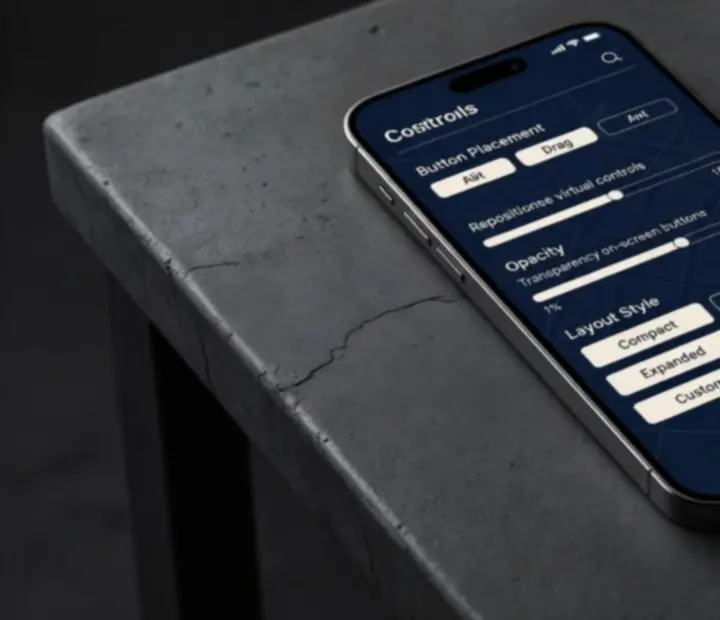
The settings menu is where Gangster Mafia War: City Crime’s controls open up. Here, players can typically:
- Move buttons away from screen edges to avoid accidental Android gestures
- Resize icons so that fire and interact are harder to miss under pressure
- Adjust opacity to keep the HUD readable without completely blocking the scene
- Tune sensitivity for both aiming and steering to better match device and preference
Left-handed players can benefit from layout mirroring options, bringing primary actions closer to their dominant thumb. Simplified button configurations, where some rarely used functions are collapsed or repositioned, also help if you have smaller hands or prefer a minimalist HUD.
While these tools do not constitute comprehensive accessibility support, they do allow you to reduce strain and mis-taps over longer sessions. For players who struggle with fine thumb precision, increasing button size and lowering sensitivity often makes the difference between constant frustration and a playable experience.
For a broader look at how these changes influence comfort during longer sessions, cross-reference our Verdict page, where we consider controls as part of the overall experience.
Staying in motion
City Interaction Shortcuts: Keeping the Pace Up
Quick-interact buttons appear when you are near loot, mission triggers, or vehicles, helping you act quickly without hunting for the right icon.
Instead of asking you to line up a reticle and hold a tiny icon, the game frequently surfaces contextual shortcuts. Get close to a parked car, and an enter vehicle button pops up. Step over dropped loot, and a pick up icon appears. Approach a mission marker, and a clear start mission prompt overlays the scene.
This design reduces the number of mis-taps where you thought you were interacting but actually fired your weapon or adjusted the camera. It also keeps the flow of movement intact: you’re encouraged to run straight toward objectives, trusting that the right prompt will appear when you’re close enough.
There are trade-offs. In busy intersections or crowded combat zones, several contextual options can appear in close succession, creating moments where you trigger a vehicle entry when you meant to grab loot, or vice versa. The prompts are generally large enough to read, but quick decisions in a cluster of icons can still be messy.
Practically, this system works best when you allow a beat of patience—wait that extra fraction of a second for the prompt to stabilize before tapping. Once you internalize where these shortcuts usually appear on your screen, they become a reliable way to keep missions and street activity moving without diving into menus.
Disconnected, not disabled
Offline Fluidity and Responsiveness
Because Gangster Mafia War: City Crime can be played offline, control responsiveness is mostly dictated by your device rather than your connection.
With the game playable offline, you avoid the input lag and desync issues that can plague always-online titles. Pressing a button triggers a local response: your character fires, dodges, or accelerates without waiting for a round trip to a remote server.
That said, performance still matters. On higher-end phones, frame rates tend to be steadier, which in turn makes the controls feel more predictable. Movement and steering follow your thumbs in a straight, fluid line. On lower-end or older devices, frame drops can momentarily slow the action, giving the impression that your inputs are being delayed even though the core control logic is local.
From a practical perspective:
- If you plan long offline sessions, reducing graphics settings where possible can reduce stutter and help controls feel tighter.
- Busy intersections and large police chases are the most likely to stress your device. Expect slightly less precise steering and aiming under those conditions.
- Short, focused play windows—one or two missions at a time—tend to showcase the controls at their best, with the battery and thermals under control.
Overall, the offline nature of the game is a win for control consistency. Once you tune the layout and sensitivity to your liking, you can rely on that feel whether you’re commuting, traveling, or simply away from Wi‑Fi.
Field-tested advice
Pro Tips for Mastering Gangster Mafia War Controls
With a bit of deliberate practice and a few layout tweaks, the city’s streets, alleys, and highways start to feel more like a controlled playground than a chaotic hazard.
1. Combine movement and actions deliberately
Spend time in low-pressure situations practicing combined inputs: circle enemies while firing, sprint toward a car while rotating the camera, or weave through traffic while occasionally tapping the handbrake. The goal is to make simultaneous thumb movements feel natural rather than panicked.
Once that muscle memory sets in, story missions and unscripted street encounters feel less like frantic tapping and more like coordinated maneuvers.
2. Lean into aim assist instead of fighting it
The snap-to-aim system is there to bridge the gap between thumb precision and traditional mouse or stick aiming. Let it do its work by facing roughly toward threats, then using small adjustments rather than sweeping camera drags.
If the assist feels too floaty or too aggressive, experiment with sensitivity until taps consistently land where you expect.
3. Redraw the HUD for your thumbs, not your eyes
It is tempting to keep the HUD symmetrical or “neat,” but comfort matters more than visual balance. Move high-pressure buttons—fire, brake, handbrake—to the most natural resting places for your thumbs, even if that makes the layout look unconventional.
For smaller hands, pushing icons closer toward the center can reduce stretch; for larger hands, spacing them out prevents accidental overlaps.
4. Use vehicles as a control testbed
Cars and bikes exaggerate control characteristics. If steering feels twitchy in a bike chase, your sensitivity is probably too high. If big sedans feel like boats, try nudging steering sensitivity upward.
Once you find settings that make vehicles predictable, you will usually notice that on-foot movement and aiming also feel more grounded.
5. Keep sessions short while you’re learning
Thumb fatigue sets in quickly when you’re still adjusting controls. Early on, keep sessions shorter and use calmer missions or free-roam segments to dial in settings.
After you have a comfortable baseline, you can push into longer story arcs or heavy combat stretches with far less strain.
Editorial wrap-up
What the Controls Tell Us About the Game
Taken together, the control scheme paints Gangster Mafia War: City Crime as an accessible, mobile-first open-world action game with enough tuning options for invested players.
If you are comfortable with virtual thumbsticks and on-screen shooters, the controls here should feel serviceable and familiar. The combination of aim assist, contextual buttons, and a conventional driving overlay keeps the barrier to entry low, while layout and sensitivity settings allow you to push closer to comfort over time.
The experience is not about granular, simulator-level precision. Instead, it aims to let you move quickly between on-foot brawls, vehicle thefts, and police chases without constantly pausing to fight the interface. In that sense, the controls succeed more often than they fail—especially on modern devices with good touch response.
Players who value tactical positioning, snappy aim assist, and flexible HUD tuning will likely find enough here to settle in for longer sessions. Those who dislike virtual thumbsticks in general may still bounce off, but the game does more than the bare minimum to make touchscreen control viable across its mix of missions and open-world exploration.
If you want to see how these controls support the broader game structure, we recommend pairing this page with:
- Gameplay for the core loop and pacing
- Missions for how controls play into story tasks
- Vehicles for car and bike behaviour
To review the official feature list or install the game, head to the official store page below.

Urbanmafiarun is an independent editorial site. We are not the developer, publisher, or Google Play.